
How to use Meoz: a simple setup guide for your workflow
You do not need a perfect routine to start. You need one thing you want to move forward. Open Meoz, choose a session, and give that next step a name. Start there; the extra settings can wait until you know what would actually help.
Start here: one session, one small goal
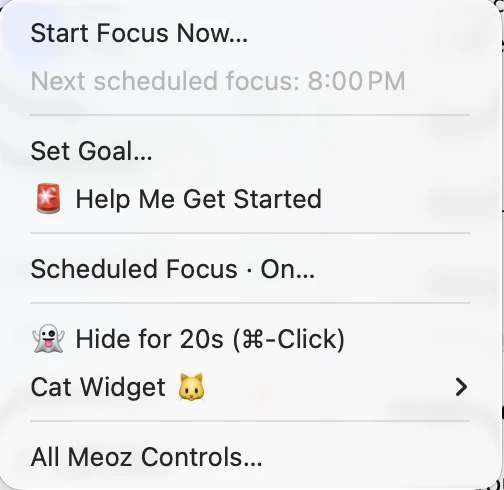
The shortest route: Start Focus Now… → choose when to stop → Continue → enter your goal. Try it with a real piece of work: outline a report, understand one paper, or fix one bug. You can tune Meoz after that first session.
Meoz is a native app for macOS 14 or later. Install it and complete the setup tour first. Choose Meoz Pro for managed AI, or use your own provider API key with Meoz Free (BYOK). Provider charges and privacy policies apply to BYOK; the linked guide below explains that option.
1. Give Meoz the permissions it needs
Follow the setup prompts and check Settings → Privacy & Permissions if browser context is unavailable. Safari and supported Chrome-family browsers use browser Automation; other supported browser paths may need Accessibility. Give permission to the Meoz app you are actually running.
Meoz uses readable browser context, not screenshots or OCR, to judge browsing against your goal. A permission failure is not evidence that a page is distracting. Resolve the permission message before relying on the Guardian. You do not need a camera or a virtual study room to use the desktop companion.
2. Start a session that fits the time you have
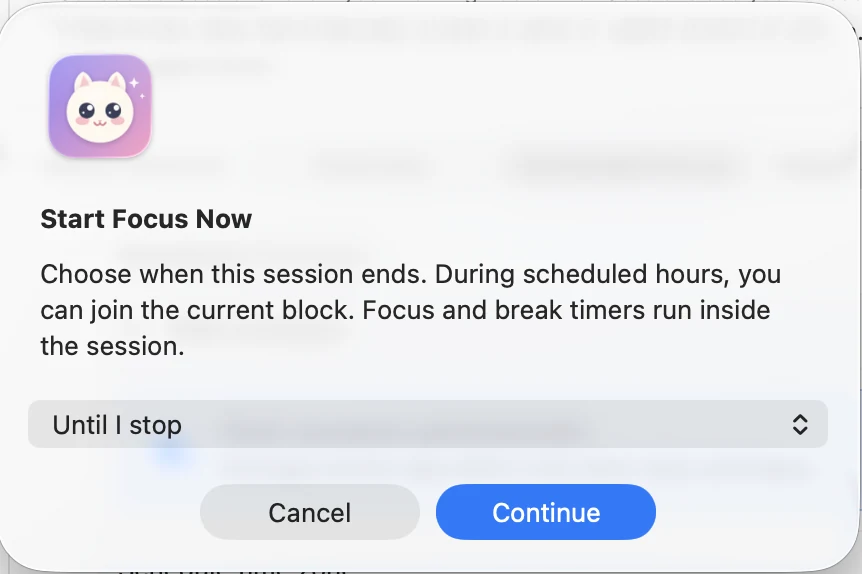
Open the cat's menu or the menu bar menu and choose Start Focus Now…. Pick a duration, or Until I stop if you do not want a fixed end time, then select Continue.
During an enabled scheduled block, you may also join the current block until its scheduled end. A session is your overall working time; focus and break phases run inside it. Taking a break does not end the session.
3. Write a goal that tells Meoz what matters
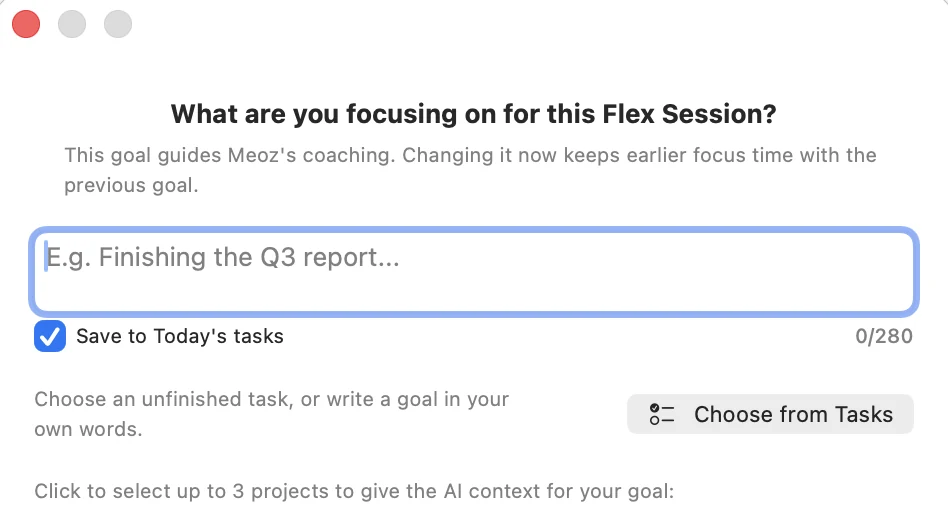
Instead of “Work,” try “Draft the findings section of my report”. Instead of “Study,” try “Understand the method in this paper and write three notes.” The goal gives Meoz useful context when a browser page could be either research or a detour.
You can write a goal, use Choose from Tasks, or keep Save to Today's tasks selected to add the new task to your queue. Choose relevant project context when available. Keep the goal small enough that you can recognize progress.
Setting a goal on its own does not start a session. For your first run, use the Start Focus Now flow so you have both a working session and a clear direction.
4. Work normally—and correct a misunderstanding
Open the tools and references you need. A relevant tutorial and an unrelated video can live on the same site; Meoz assesses readable browser context against your goal rather than treating every visit as identical. It can still misunderstand a page.
If Meoz offers Appeal to AI, explain why that resource helps your current goal. An approved appeal is temporary and scoped, not a permanent pass for everything on the site. Some explicit blocking or strict policies do not offer that route; inspect the rule you chose instead.
When you need to step away, use the available pause or break controls. Use End This Session… when you are done. Lock settings can restrict these actions, so leave locks off while learning the app.
5. Make the companion comfortable to work beside
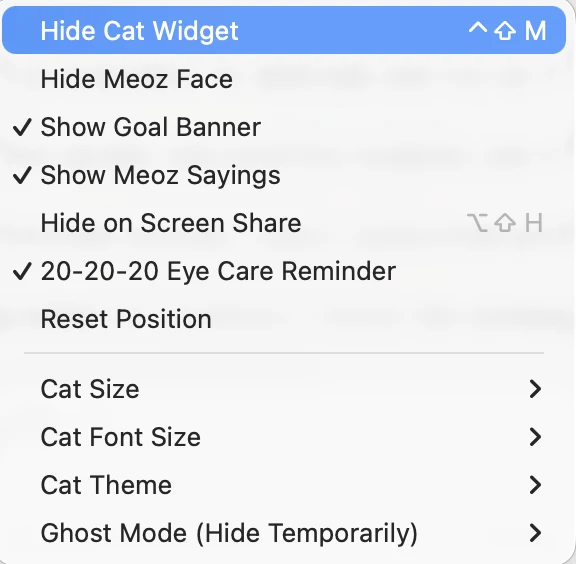
Open Cat Widget to show or hide the face, Goal Banner and Meoz Sayings, or adjust size, font and theme. Keep the goal visible if it helps you return to your next step. Hide the face if your screen feels busy. Hiding the widget does not end your session.
You can drag the cat to a better spot, use Reset Position, or hide it temporarily with Ghost Mode. The screen-sharing option is useful for calls; check your sharing preview before presenting.
New installations start with sounds muted; existing sound preferences are retained. To enable gentle sounds, open Settings → Sounds. To turn them off again, open the full menu through All Meoz Controls… → Mute Sounds. Start quietly and add sound only if you find it helpful.
6. Add a schedule when you want a regular rhythm
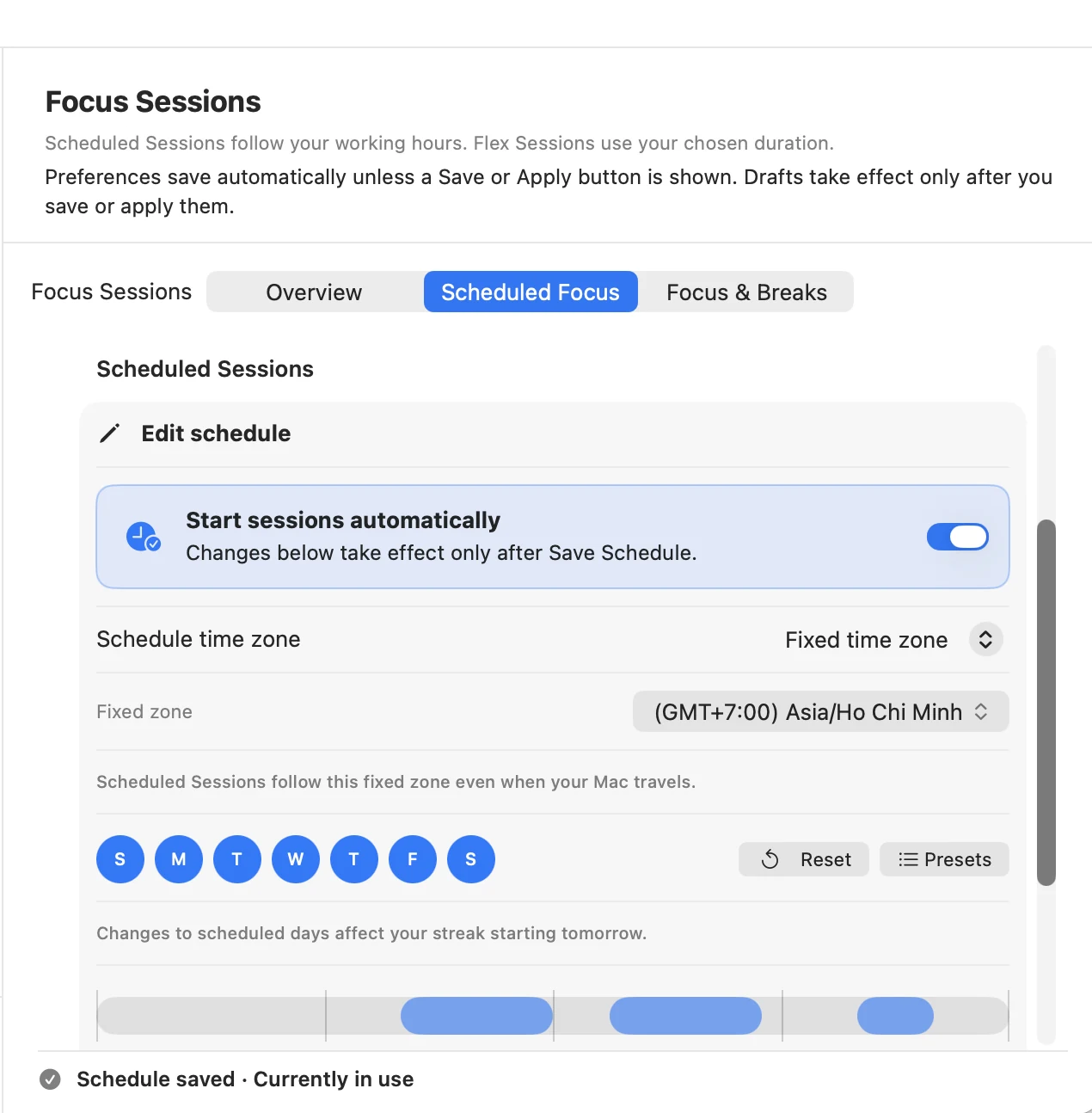
Open Settings → Focus Sessions → Scheduled Focus. Choose your working days and time ranges, then decide whether the schedule should follow your Mac's time zone or stay in a fixed zone.
Enable automatic starts and press Save Schedule or the save-and-enable button shown. Unsaved schedule edits do not take effect. Check for “Schedule saved · Currently in use” and the next scheduled time.
Keep Meoz running for automatic sessions. Saving a schedule during a current block does not immediately start it; use Start Focus Now to join. Automatic scheduled starts do not wait for you to save a goal, so check your goal when the session begins. Editing the schedule does not rewrite an already running session's end time.
7. Set breaks around the work, not the other way around
Use Focus Sessions → Focus & Breaks to adjust your focus and break rhythm. Shorter stretches may make a difficult report easier to begin; longer stretches may suit coding or close reading. Try one rhythm before changing several controls.
A fixed session still has its own end time. Breaks and pauses happen within that working time rather than automatically extending it. Keep your next step small enough to resume after a break.
8. Use Custom Focus Rules for the exceptions that matter
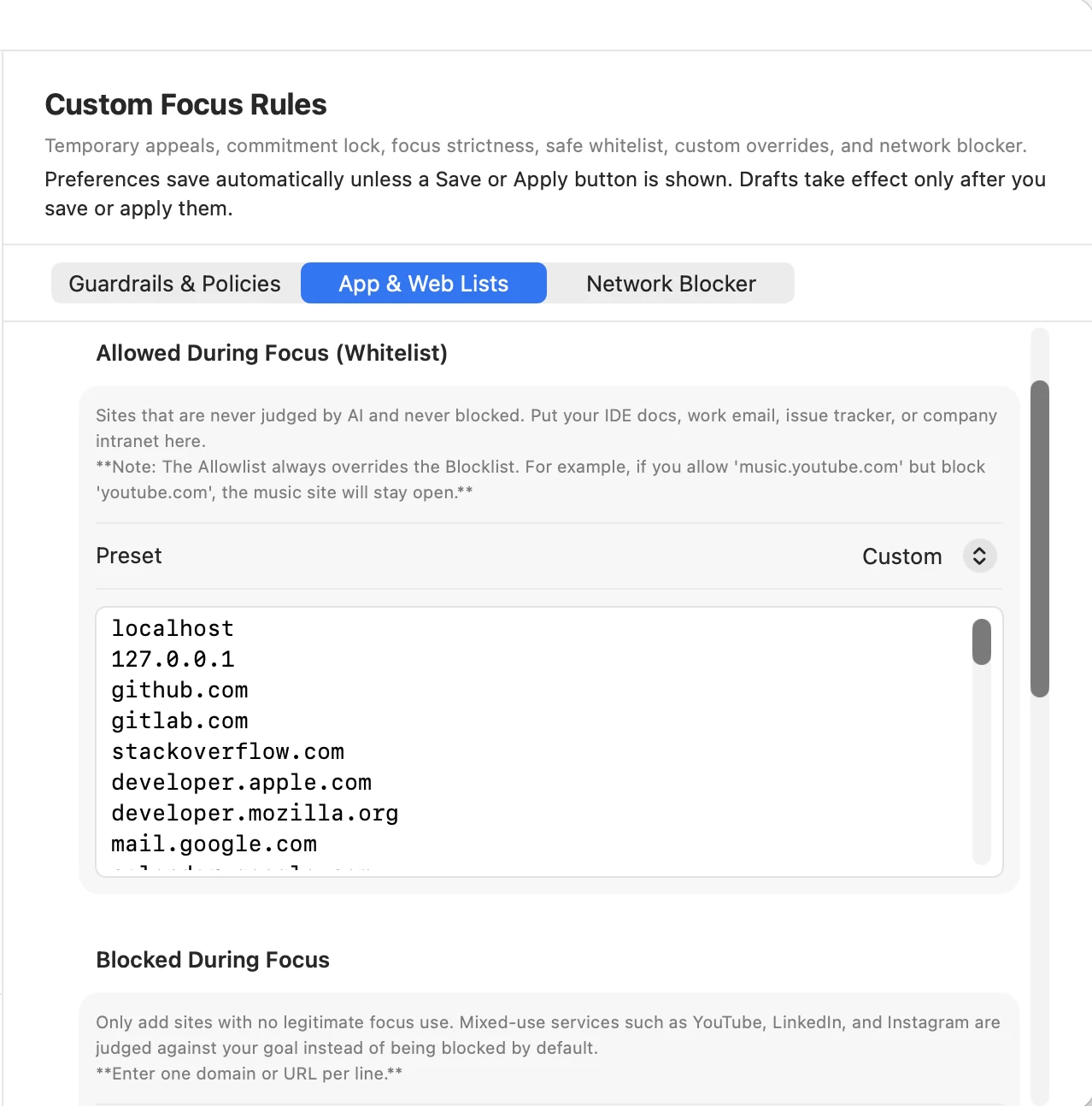
Open Settings → Custom Focus Rules. Start with Smart Context under Guardrails & Policies. If you want a different balance, review the descriptions of Gentle Companion and Deep Lockdown before choosing. Also review the separate short-video policy if short-form platforms are part of your work.
Under App & Web Lists, put reliably useful destinations in Allowed During Focus. Use this sparingly: allowing an entire mixed-use site can remove the judgment you wanted. If YouTube is sometimes research and sometimes a distraction, do not whitelist the whole site just to save one tutorial.
Use Blocked During Focus for destinations you want closed during focus. Within these app-level lists, an explicit allow exception takes precedence over a block. This does not override the separate Network Blocker.
Selected native-app monitoring is different from reading browser content: do not assume Meoz understands the document inside every app. Customize monitored apps only when it suits your work. Custom blocked-site and monitored-app lists are Pro features; Free includes BYOK and a limited custom allowlist. Check current plan details before building a routine around a Pro control.
Most preferences save automatically, but always use Save or Apply when the screen shows it. A visible draft is not necessarily the active rule.
9. Treat Network Blocker and locks as advanced choices
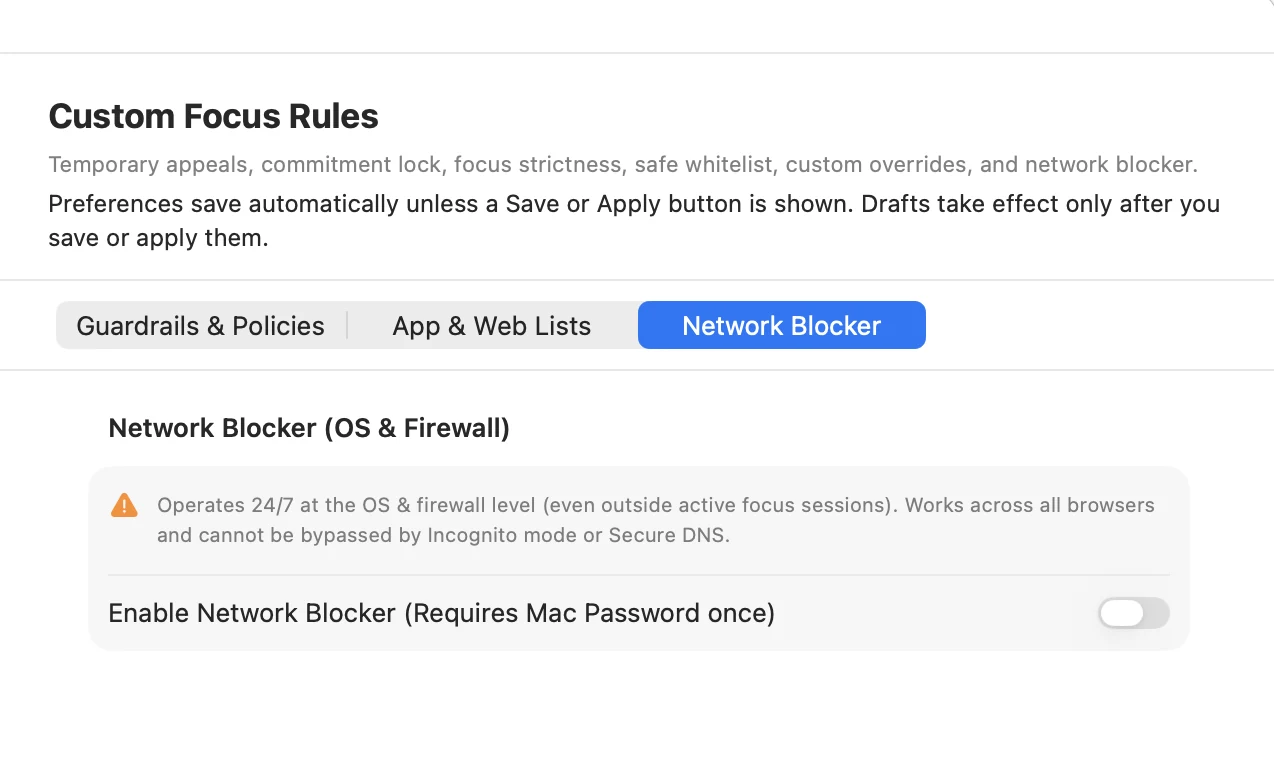
The Network Blocker is separate from focus-only lists. Its applied rules operate system-wide, including outside focus sessions. Ending a session or adding a focus allowlist entry does not switch those rules off.
Only enable it when you want that broader boundary. Follow the setup, review the domains, and use the displayed Save & Apply action; applying changes requires administrator authorization. Free supports the default network list; custom network lists are Pro. Use the blocker's own controls to change or disable applied protection.
Focus Lock and Commitment Lock are optional Pro commitments, not necessary setup steps. Read the confirmation and expiry before activating one: locks can restrict ending, pausing, quitting or changing rules. First test your normal workflow without a lock so you know you can reach the resources you need.
Three ways to fit Meoz into a real day
Writing or research: choose one section or question as your goal. Keep your paper, notes and relevant references available. If you need a tutorial, let its relevance be judged instead of allowing the entire video platform. Use the Goal Banner to remember what you came back to do.
Development: name the bug or behavior you are working on. Add consistently necessary documentation to your allowlist if needed. Keep broader forums and video searches contextual. Review native-app monitoring so your editor is not treated as a distraction just because you spend a long time there.
Client work or a crowded day: begin with a manual session around one deliverable. Keep sounds off and hide the face during calls if you prefer. Add a saved schedule only when your week becomes predictable. You do not have to configure every advanced option to benefit from Meoz.
If something feels wrong, check these first
A session did not start: check that automatic starts are saved and enabled, the day and time zone are correct, and Meoz is running. To work now, use Start Focus Now. A page cannot be read: revisit Privacy & Permissions instead of adding a broad allow rule.
A useful site is blocked: inspect both your focus rules and Network Blocker. An appeal is not a universal bypass. The cat is missing: check Cat Widget visibility and Reset Position. Sounds are too much: use Mute Sounds in the full menu.
Finish the first session by asking one question: What would make the next one easier? Adjust that setting, choose the next small goal, and continue. A helpful setup should leave you thinking about your work—not about managing Meoz.
Start your first session with Meoz
About this guide
Written by the Meoz team using the current app's controls and product documentation. Screenshots show the English interface; labels can vary by language and version. Some advanced controls require Pro. Check current pricing and privacy details before choosing a plan.
Keep reading
Use Meoz's Free AI with your own key (BYOK)
What BYOK includes in Meoz Free, how to get started, and how provider costs and privacy differ from Pro.
Read article → GuidesGoal-aware AI and website blockers: when to use each
How goal-aware classification, focus blocklists and system-wide network protection work together in Meoz.
Read article → GuidesThe best focus app for students and researchers? Meet Meoz.
Looking for the best focus app for studying and research on Mac? Meet Meoz: a friendly AI companion for thesis writing, Overleaf, coding and educational YouTube.
Read article →